
AI Photo Editing for Social Media Content Creators: Complete 2026 Guide
Boost your social media game with AI photo editing tools. Learn how content creators use AI to create stunning posts faster. Tips, workflows, and tools for 2026.
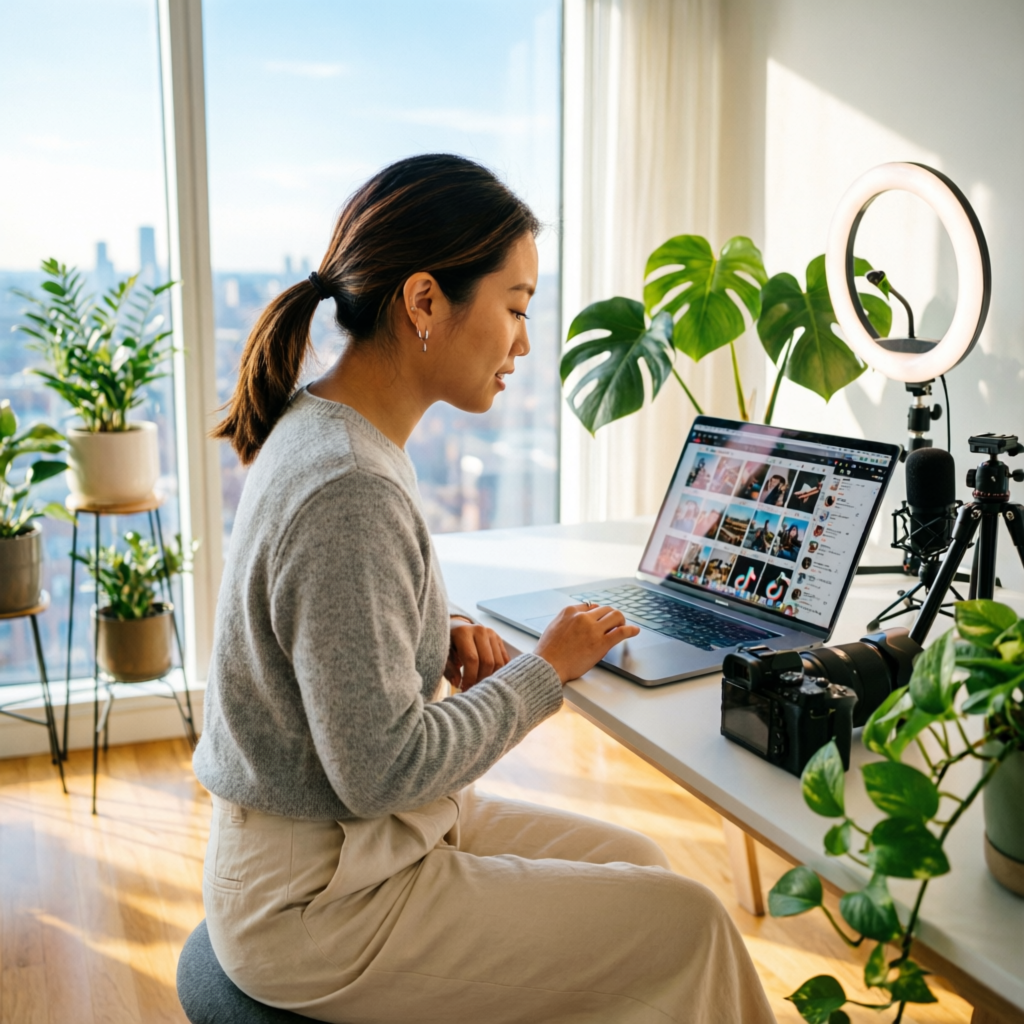
Creating eye-catching social media content consistently is one of the biggest challenges for content creators. Between filming, editing, engaging with your audience, and planning your next post, photo editing often becomes a time-consuming bottleneck. That's where AI photo editing comes in—transforming what used to take hours into minutes, without sacrificing quality.
Whether you're an Instagram influencer, YouTube creator, TikTok star, or managing brand accounts, AI tools can dramatically accelerate your content workflow while maintaining the professional polish your audience expects. This guide shows you exactly how top content creators are using AI photo editing in 2026, with practical workflows you can implement today.
Why Content Creators Are Switching to AI Photo Editing
The Content Creation Challenge
Modern content creators face unprecedented demands:
- Volume: Posting 1-3 times daily across multiple platforms
- Quality: Audience expectations for professional-looking content
- Speed: Trending topics require rapid response
- Consistency: Maintaining a recognizable visual style
- Budget: Limited resources for professional editing help
Traditional photo editing software like Photoshop offers powerful features, but mastering them takes years. Even simple tasks like background removal or color correction can take 15-30 minutes per image when done manually.
How AI Changes the Game
AI photo editing tools deliver:
- Speed: 10-100x faster than manual editing for common tasks
- Consistency: Automatic style application across all images
- Accessibility: Professional results without professional skills
- Scalability: Process dozens of images simultaneously
- Cost-effectiveness: Free or affordable subscription models
Real-world impact: Creators report reducing editing time from 2-3 hours per post to under 20 minutes, allowing more time for content strategy and audience engagement.
Core AI Editing Tasks for Social Media
1. Background Removal and Replacement
Why It Matters: Clean backgrounds make subjects pop, creating professional-looking product shots, portraits, and promotional images. Messy or distracting backgrounds hurt engagement.
AI Solution: Tools like Remove.bg, Photoshop Neural Filters, and AImage use AI to instantly detect and remove backgrounds with edge precision that rivals manual work.
Practical Applications:
- Product photos: Remove cluttered backgrounds, add clean white or branded backgrounds
- Profile pictures: Create professional headshots from casual photos
- Thumbnail creation: Isolate yourself against custom backgrounds
- Consistent branding: Swap backgrounds while maintaining subject quality
Workflow:
- Upload image to AI background removal tool
- Download PNG with transparent background
- Add new background in Canva, Figma, or editing app
- Export for your platform
Time Saved: From 20-30 minutes manual selection to under 1 minute.
2. Smart Color Grading and Filters
Why It Matters: Consistent color grading creates recognizable brand identity. Your audience should recognize your content instantly by its visual style.
AI Solution: AI-powered color grading tools analyze your photos and apply professional color corrections automatically. Some learn your style over time.
Practical Applications:
- Feed consistency: Apply the same color profile across all posts
- Mood creation: Warm tones for lifestyle, cool tones for tech content
- Brand identity: Custom color palettes that match your brand
- Seasonal themes: Quick shifts for holidays or campaigns
Workflow:
- Create or select an AI color profile
- Batch process all photos for a week's content
- Fine-tune individual images if needed
- Export with consistent color grading
Time Saved: From 5-10 minutes per photo to under 30 seconds.
3. Face and Skin Retouching
Why It Matters: Good lighting isn't always available. Blemishes, uneven skin tone, and unflattering shadows can hurt confidence and reduce post performance.
AI Solution: AI beauty filters and retouching tools automatically smooth skin, remove blemishes, adjust lighting, and enhance features while maintaining natural appearance.
Practical Applications:
- Portrait enhancement: Clear skin, brighter eyes, natural glow
- Video thumbnails: Professional-looking freeze frames
- Consistent appearance: Even out lighting differences between shoots
- Confidence boost: Look your best without heavy makeup
Important: Use subtly. Over-retouched photos look artificial and hurt authenticity—your audience values real connection.
Workflow:
- Apply AI beauty filter at 30-50% strength
- Adjust lighting and exposure
- Check multiple times to avoid over-processing
- Compare with original to ensure natural look
Time Saved: From 10-15 minutes of manual spot healing to under 2 minutes.
4. Smart Cropping and Framing
Why It Matters: Different platforms require different aspect ratios. Instagram posts (1:1), Stories (9:16), YouTube thumbnails (16:9), TikTok (9:16), Twitter (16:9 or 2:1). Manual cropping for each platform is tedious.
AI Solution: AI-powered smart crop tools automatically identify the focal point and generate optimized crops for each platform, ensuring important elements stay in frame.
Practical Applications:
- Multi-platform posting: One photo, five platform-optimized versions
- Focus preservation: Keep faces and key elements centered
- Composition improvement: AI suggests better framing
- Batch processing: Crop entire photo sets at once
Workflow:
- Upload master image (high resolution)
- Select platforms (Instagram, TikTok, YouTube, etc.)
- AI generates optimized crops for each
- Review and adjust if needed
- Export all versions
Time Saved: From 5 minutes per platform to under 1 minute total.
5. Text Overlay and Graphic Elements
Why It Matters: Text overlays drive engagement, especially for tutorial content, quotes, or CTAs. But adding text that's readable, on-brand, and visually appealing takes design skills.
AI Solution: AI design tools like Canva's Magic Design or Adobe Express suggest text layouts, font pairings, and positioning based on your image composition.
Practical Applications:
- Quote graphics: Turn spoken quotes into shareable images
- Tutorial steps: Number and annotate process photos
- CTAs: Add clear calls-to-action to posts
- Branding: Consistent text styling across content
Workflow:
- Upload image to AI design tool
- Input text content
- AI suggests 5-10 layout options
- Select and customize
- Export ready-to-post graphic
Time Saved: From 10-20 minutes in design tools to under 3 minutes.
Platform-Specific AI Editing Strategies
Instagram Content
Feed Posts (1:1 or 4:5):
- High-quality, cohesive aesthetic
- Use AI color grading for feed consistency
- Background removal for product shots
- Face retouching at 30-40% (maintain authenticity)
Stories (9:16):
- Quick, authentic content
- AI text overlays for engagement
- Smart crop from landscape photos
- Light beauty filters (15-25%)
Reels (9:16):
- Thumbnail optimization critical
- AI-selected best frame from video
- Face enhancement for thumbnails
- Eye-catching text overlays
Pro Tip: Use AI to maintain consistent saturation and contrast across your grid. Tools like Later or Planoly integrate AI to preview how new posts fit your aesthetic.
YouTube Content
Thumbnails (1280x720, 16:9):
- High contrast and saturation for visibility
- AI face enhancement (brighter eyes, clear skin)
- Text overlay with bold, readable fonts
- Background blur or replacement to isolate subject
Community Posts:
- Shareable graphics with quotes or updates
- AI-generated text layouts
- Brand-consistent color schemes
Pro Tip: A/B test thumbnails. Use AI to quickly generate 3-5 variations, then analyze which performs best.
TikTok Content
Videos (9:16):
- Cover image optimization (first frame)
- AI color grading for visual identity
- Quick beauty filters during editing
Photo Posts (9:16):
- Bold, eye-catching edits
- Text overlays for context
- Trending color styles (AI can match popular aesthetics)
Pro Tip: Speed is critical. Use AI batch processing to edit multiple photos before shooting additional content.
Twitter/X Content
Images (16:9 or 2:1):
- Clear, readable text overlays
- High contrast for mobile visibility
- Smart crop to preserve key elements
Threads:
- Consistent visual style across thread images
- AI-generated quote graphics
- Numbered steps or points
Pro Tip: Twitter favors text-heavy images. Use AI to suggest text placement that doesn't obscure important visual elements.
Recommended AI Tools by Use Case
All-in-One Solutions
1. AImage (Our Platform)
- Complete suite for content creators
- Background removal, color grading, retouching
- Multi-platform export presets
- Batch processing
- Best for: Creators who want everything in one place
2. Canva Pro
- AI-powered design tools (Magic Design, Magic Edit)
- Template library with AI suggestions
- Background remover
- Text-to-image generation
- Best for: Non-technical creators, quick social graphics
3. Adobe Express
- Adobe's AI tools in simplified interface
- Smart crop for all platforms
- Template-based editing
- Mobile and desktop apps
- Best for: Creators familiar with Adobe ecosystem
Specialized Tools
Background Removal:
- Remove.bg: Fast, accurate, API available
- AImage: Built-in background removal
- Photoshop Neural Filters: Highest quality
Face Retouching:
- Facetune: Popular with influencers
- AirBrush: Natural-looking results
- Retouch Me: Professional retouching
Color Grading:
- VSCO: Preset filters with AI enhancement
- Lightroom: AI-powered auto adjustments
- AImage: Custom color profiles
Smart Cropping:
- IntelliSize: Multi-platform batch cropping
- Kapwing: Online smart crop tool
- AImage: Platform-optimized exports
Batch Processing:
- Bulk Image Edit: Process hundreds at once
- Photoshop Actions + AI: Automated workflows
- AImage: Batch color grading and retouching
Workflow Examples: Real Creator Scenarios
Scenario 1: Instagram Fashion Influencer
Daily posting schedule: 1 feed post, 3-5 stories
AI Workflow:
- Morning shoot (30 min): Capture 20-30 photos in 3 outfits
- AI selection (5 min): Use AI to auto-select best shots
- Batch color grade (3 min): Apply consistent filter to all
- Face retouching (5 min): Light beauty filter on selected posts
- Background removal (3 min): Clean backgrounds for product features
- Multi-platform export (2 min): Export for IG feed (4:5) and stories (9:16)
- Schedule (5 min): Upload to scheduling tool
Total time: 53 minutes for full week's content (vs 3-4 hours manual)
Scenario 2: YouTube Tech Reviewer
Weekly schedule: 2 videos + community posts
AI Workflow:
- Video recording (2 hours): Film review
- Thumbnail creation (8 min):
- AI extracts best frame from video
- Face enhancement + background blur
- AI suggests text overlay layouts
- Export 3 variations for A/B testing
- Community graphics (10 min):
- AI quote graphics from video highlights
- Consistent color scheme across posts
- Platform optimization (5 min):
- Smart crop for Twitter, Instagram shares
- Export multiple sizes
Total editing time: 23 minutes per video (vs 45-60 minutes manual)
Scenario 3: Multi-Platform Brand Manager
Daily workload: 3-5 posts across Instagram, TikTok, Twitter, LinkedIn
AI Workflow:
- Content shoot (1 hour): Capture product/lifestyle photos
- AI processing (15 min):
- Remove backgrounds
- Apply brand color profile
- Batch retouch
- Platform adaptation (10 min):
- AI smart crop for each platform
- Generate platform-specific variations
- Add text overlays with brand templates
- Review and schedule (10 min): Final checks, schedule posts
Total time: 1 hour 35 min for full day's multi-platform content (vs 3-4 hours manual)
Common Mistakes to Avoid
1. Over-Editing
The Problem: Heavy filters, aggressive skin smoothing, and unnatural colors make content look fake and reduce trust.
Solution:
- Use AI tools at 30-50% strength
- Compare before/after frequently
- Ask trusted friends for honest feedback
- Prioritize authenticity over perfection
2. Inconsistent Style
The Problem: Switching between different AI tools and filters creates a disjointed feed aesthetic.
Solution:
- Create custom AI presets that match your brand
- Stick to one primary color grading system
- Use the same tools consistently
- Document your editing workflow
3. Ignoring Platform-Specific Best Practices
The Problem: One-size-fits-all editing doesn't optimize for each platform's algorithm and user behavior.
Solution:
- Research each platform's current visual trends
- Use AI to generate platform-optimized versions
- Test different styles and analyze performance
- Adjust based on engagement data
4. Neglecting Batch Processing
The Problem: Editing photos one-by-one wastes time and creates inconsistency.
Solution:
- Shoot in batches (week's content in one session)
- Process all similar photos together with AI
- Create templates for recurring content types
- Schedule ahead to smooth workflow
5. Not Leveraging AI Learning
The Problem: Using AI tools without teaching them your style means missing their full potential.
Solution:
- Create and save custom AI profiles
- Train AI on your favorite edited photos
- Use tools that learn your preferences
- Refine presets over time
Advanced Tips from Pro Creators
Tip 1: Create an AI Editing Library
Build a collection of:
- Custom color profiles for different moods (energetic, calm, professional)
- Background templates for recurring content types
- Text overlay templates with your brand fonts
- Face retouching presets (light/medium/heavy)
Result: 5-second editing decisions instead of starting from scratch each time.
Tip 2: Use AI for Content Inspiration
Many AI tools can:
- Analyze trending visual styles
- Suggest color schemes based on your niche
- Generate mood boards from keywords
- Recommend compositions based on top-performing posts
Result: Data-driven creative decisions.
Tip 3: Automate Repetitive Tasks
Set up AI-powered automations:
- Auto-backup raw photos to cloud
- Auto-apply brand preset when images arrive
- Auto-crop and export to platform-specific folders
- Auto-generate low-res versions for stories
Result: Editing starts before you even open software.
Tip 4: Mobile + Desktop Workflow
Best practice:
- On location: Use mobile AI apps for quick edits and immediate posting
- At desk: Use desktop AI tools for batch processing and final polish
- Sync everything: Cloud-based tools keep workflow seamless
Result: Maximum flexibility and efficiency.
Tip 5: Measure and Optimize
Track metrics:
- Engagement rate by editing style
- A/B test thumbnails with AI variations
- Monitor which AI-edited posts perform best
- Adjust AI settings based on data
Result: Continuously improving content performance.
Getting Started: Your First Week with AI Editing
Day 1-2: Setup and Learn
- Choose your primary tool (AImage, Canva, Adobe Express)
- Create accounts and explore features
- Watch 2-3 tutorial videos
- Edit 5 practice photos (no pressure, just experiment)
Day 3-4: Build Your System
- Create custom presets (colors, filters, crops)
- Organize your workflow (folders, naming conventions)
- Test batch processing (edit 10+ photos at once)
- Document your process (screenshot steps for future reference)
Day 5-7: Go Live
- Shoot a batch of content (20+ photos)
- Process with AI tools (follow your workflow)
- Post and monitor results
- Refine based on what worked
Goal: By end of week 1, you should be editing at least 2x faster with better consistency.
Cost Analysis: Free vs Paid AI Tools
Free Tier Options
What You Get:
- Basic AI features (background removal, filters)
- Limited exports per month (5-20)
- Lower resolution outputs
- Watermarks on some tools
Best For: Beginners, occasional creators, testing before buying
Recommended Free Tools:
- Remove.bg: 50 free previews/month
- Canva Free: Basic AI features
- AImage Free Tier: 10 edits/month
Paid Subscriptions
Typical Cost: $10-30/month
What You Get:
- Unlimited exports
- High-resolution outputs
- Advanced AI features (batch processing, custom presets)
- Priority processing speed
- No watermarks
- API access (for automation)
Best For: Professional creators, consistent posters, brands
ROI Calculation: If you save 2 hours/week at $50/hour rate:
- Savings: $400/month
- Subscription cost: $20/month
- Net benefit: $380/month
Even at minimum wage, the time savings justify the cost.
The Future of AI Photo Editing for Creators
Emerging Trends (2026-2027)
1. Real-Time AI Editing
- AI filters applied during photo capture
- Live preview of edits before shooting
- Instant multi-platform export
2. AI Creative Assistants
- "Suggest content ideas based on my style"
- "Show me trending aesthetics in my niche"
- "What editing style will perform best?"
3. Hyper-Personalization
- AI that learns individual audience preferences
- Automatic style adjustment per viewer
- Predictive editing suggestions
4. Voice-Controlled Editing
- "Remove background and add warm tone"
- "Make this photo match yesterday's post"
- Hands-free workflow
5. Cross-Platform AI Coordination
- One edit, intelligent adaptation for all platforms
- AI schedules posts at optimal times with optimal styles
- Automated performance testing
Conclusion
AI photo editing isn't about replacing creativity—it's about freeing you from tedious technical work so you can focus on what you do best: creating compelling content and connecting with your audience. The tools are more accessible, affordable, and powerful than ever in 2026.
Start small: pick one AI tool, master one task (like background removal or color grading), then gradually expand your AI toolkit. Within weeks, you'll wonder how you ever managed without it.
The creators who thrive in the next era will be those who leverage AI to work smarter, post faster, and maintain consistent quality across all platforms. The technology is ready. Are you?
Related Articles:
- AI Image Upscaling & Enhancement: Complete Guide 2026
- AI Portrait Background Removal & Replacement Guide
- Best AI Avatar Generators 2025
Recommended External Tools:
- Remove.bg - AI Background Removal
- Canva Pro - All-in-One Design Tool
- Adobe Express - Quick AI Editing
Ready to transform your content workflow?
Try AImage for Free →Ready to try it yourself?
Try AImage for Free →